
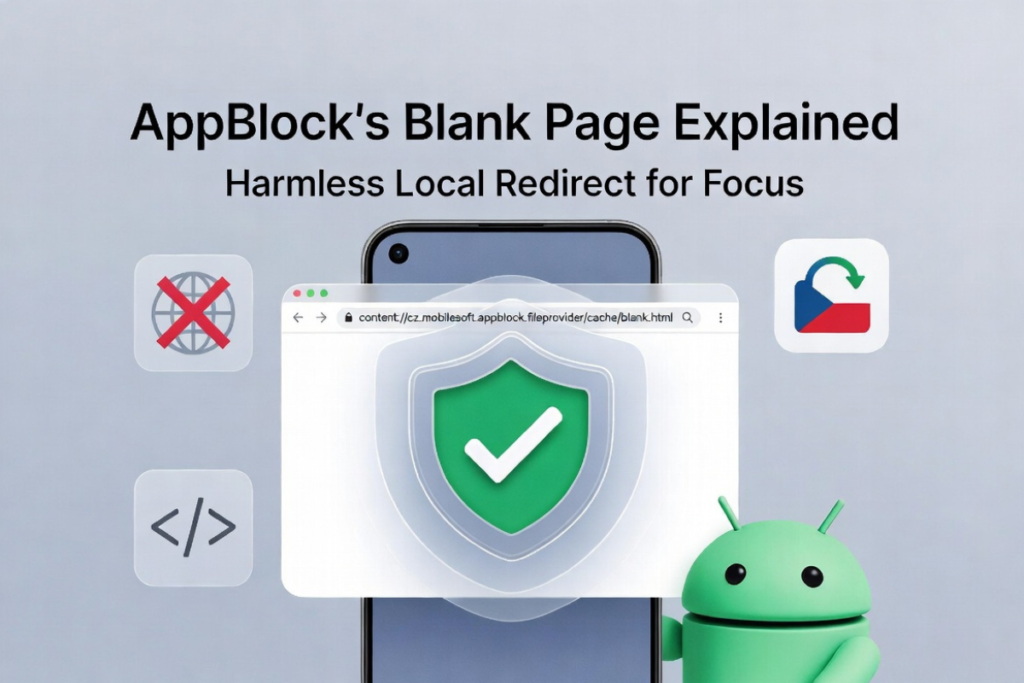
The string content://cz.mobilesoft.appblock.fileprovider/cache/blank.html is a local Android address created by the AppBlock app. It points to an empty HTML page stored on your device. AppBlock loads it whenever it blocks a website you tried to open.
In plain terms, it’s not a website. It’s not a hacker’s calling card either. It’s just AppBlock doing exactly what you told it to do — keeping you off sites you wanted to avoid.
You spotted this in your browser bar or history, panicked a little, and started Googling. Good news: you’re in the right place, and your phone is fine.
What Does This URI Actually Mean?
It means AppBlock swapped a blocked website with a blank page saved on your phone. Instead of loading the real site, your browser shows this local file. That’s the whole story.
AppBlock is a focus and parental-control app made by MobileSoft, a Czech company. The app has racked up over 10 million downloads on Google Play, so millions of people see this exact path. You’re far from alone.
The browser treats that swap like a normal page load. So the address sits in your bar, and sometimes in your history, looking far scarier than it is.
Breaking Down the URI Piece by Piece
Each chunk of this address has a job. Once you split it apart, the mystery disappears fast. Here’s the full breakdown.
| URI Segment | What It Means |
|---|---|
content:// | Android’s secure data-sharing protocol — not http:// or https:// |
cz | Country code for the Czech Republic, where MobileSoft is based |
mobilesoft | The developer’s name |
appblock | The app itself |
.fileprovider | Android’s secure file-sharing component (FileProvider) |
/cache/ | A temporary storage folder inside the app |
blank.html | An empty placeholder page with no real content |
So cz.mobilesoft.appblock is just AppBlock’s package name in reverse-domain format. Android names apps this way to keep them unique. No two apps can share the same package ID.
The .fileprovider part is the interesting bit, and we’ll dig into it shortly. It’s a built-in Android security feature, not something AppBlock invented.
Why Does content://cz.mobilesoft.appblock.fileprovider/cache/blank.html Keep Appearing?
It appears every time AppBlock stops you from visiting a blocked site. The app intercepts your request and serves the blank page instead. That swap is what you see.
Think of it like a polite bouncer. You walk toward a site on your blocklist, and AppBlock quietly redirects you to an empty room instead of letting you in. No error screen, no spinning loader — just a clean blank page.
Here are the most common moments this URI shows up:
- You tapped a blocked site. This is the big one. The redirect fires instantly.
- A blocked link sat inside an app. Social apps and email often open links in a browser, triggering the swap.
- An ad or tracker tried to load. If AppBlock filters it, you may see the blank page flash.
- You scrolled through browser history. Each blocked attempt gets logged like a real visit.
Why does it land in your history? Android records the redirect as a visited page. Your browser can’t tell the difference between a real site and a local blank file. So it files the entry away like any other.
Is content://cz.mobilesoft.appblock.fileprovider/cache/blank.html a Virus?
No. It is not a virus, malware, or a sign that you’ve been hacked. It’s a harmless local file made by an app you (or someone with access to your phone) installed.
Let’s be clear about why it’s safe:
- It never touches the internet. The blank page loads from your phone’s storage, not an external server.
- It holds no code.
blank.htmlis an empty document. There’s nothing inside to run or execute. - It can’t track you. AppBlock only checks sites against your blocklist. Your regular browsing isn’t logged or sent anywhere.
One quick gut-check, though. If you never installed AppBlock and still see this path, look through your installed apps. Open Settings > Apps and search for anything under the cz.mobilesoft name. Compare it against the official AppBlock listing on Google Play to confirm it’s legit.
This matters more than you’d think. Parental-control apps are sometimes installed on shared or hand-me-down phones. A previous owner or family member may have set it up.
You might also see cz null in system logs. That’s not an error. The cz is the country code, and null just means an operation returned no result. Totally harmless.
How Does Android’s FileProvider Work?
FileProvider is an official Android tool for sharing files safely between apps. It hands out a content:// address instead of exposing the raw file path. This protects your device from insecure file access.
According to Android’s official developer documentation, FileProvider is “a special subclass of ContentProvider that facilitates secure sharing of files” by creating a content:// URI instead of a file:/// URI. Google calls it “a key part of Android’s security infrastructure.”
Here’s why that design choice is smart. A file:/// path exposes your real storage and grants access to any app until you manually change permissions. A content:// URI grants only temporary, controlled access. Much safer.
The /cache/ segment also lines up with Android’s docs. The <cache-path> element maps to the app’s cache directory — the same folder returned by getCacheDir(). So AppBlock stores blank.html exactly where Android intends temporary files to live.
This is the part most competitor articles skip or gloss over. AppBlock isn’t doing anything sneaky. It’s following the standard, documented Android playbook for handling local files.
How Do You Stop content://cz.mobilesoft.appblock.fileprovider/cache/blank.html From Showing Up?
You stop it by adjusting AppBlock’s settings, pausing it, clearing its cache, or removing the app. Pick the method that matches how much blocking you still want. Here are your options, from gentlest to most permanent.
Method 1: Edit Your AppBlock Blocklist
Open AppBlock and tap the gear icon to reach Settings. Find the website filtering or blocklist section. Remove any sites you no longer want blocked, then save.
Once a site leaves the list, the blank page stops loading in its place. This is the best fix if you only want to unblock a few specific sites.
Method 2: Pause AppBlock Temporarily
Pull down your notification panel and tap the AppBlock notification. Select Pause or disable active blocking. The redirect won’t fire while blocking is off.
This is handy for a quick break. Just remember to switch it back on, or you defeat the whole point of installing it.
Method 3: Clear AppBlock’s Cache
Go to Settings > Apps > AppBlock > Storage & Cache, then tap Clear Cache. This wipes blank.html along with other temporary files.
Fair warning: this is a temporary fix. AppBlock rebuilds the cache the next time it blocks a site. So the file comes back, but a quick cache clear can still clean up clutter.
Method 4: Uninstall AppBlock
Head to Settings > Apps > AppBlock and tap Uninstall. Removing the app deletes the cz.mobilesoft.appblock package and every cached file with it. The URI never returns.
Only do this if you don’t need blocking anymore. If you still want focus tools or site controls, keep reading.
Method 5: Use Built-In Browser Controls Instead
Chrome offers native site controls under chrome://settings/content. You can block or allow specific sites without any third-party app at all.
This is a solid middle ground. You keep some control without seeing AppBlock’s blank page ever again.
Does This URI Work the Same on Phones, Tablets, and Chromebooks?
Yes. AppBlock behaves identically across Android phones, tablets, and Chromebooks. The blank.html path looks the same everywhere because the package name never changes.
Chromebooks run Android apps through a built-in subsystem. So you manage AppBlock through Android settings on Chrome OS, using the same steps listed above. According to Google support docs, Chromebooks handle Android files through the dedicated Files app and Android settings layer.
The only real difference is how you reach those settings. The fix itself stays the same on every device.
7 Quick Facts Worth Knowing
A few verifiable details that put this whole thing in perspective:
- AppBlock has 10M+ downloads on Google Play, so this URI is extremely common.
- MobileSoft is a Czech developer, which explains the
czprefix. - FileProvider is official Android tech, documented by Google, not a custom hack.
content://grants only temporary access, unlike riskyfile:///paths.- The
/cache/folder is standard, mapping to Android’sgetCacheDir(). - The blank page loads instantly because it skips any internet request.
- History entries are normal logging, not separate sites you actually visited.
Frequently Asked Questions
What does content://cz.mobilesoft.appblock.fileprovider/cache/blank.html mean?
It’s a local Android address for an empty page that AppBlock loads when it blocks a website. The blank page replaces the site you tried to open.
Is content://cz.mobilesoft.appblock.fileprovider/cache/blank.html safe?
Yes, completely safe. It points to an empty file on your phone with no code, no tracking, and no internet connection.
Is it a virus or malware?
No. It belongs to AppBlock, a legitimate app by MobileSoft with millions of downloads. It’s not malware in any form.
Why does it appear in my browser history?
Android logs the blocked-site redirect as a visited page. Each history entry matches a blocking event, not a real site you opened.
How do I get rid of it permanently?
Uninstall AppBlock through Settings > Apps > AppBlock > Uninstall. To keep the app but stop the page, remove sites from your blocklist instead.
Can I delete blank.html manually?
You can, but AppBlock recreates it automatically. Clearing the app’s cache is the cleaner, more reliable approach.
What is “cz null” in my logs?
The cz is the Czech Republic country code in AppBlock’s package name. The null simply means an operation returned no result. It’s harmless.
I never installed AppBlock — why do I see this?
Someone with access to your phone may have set it up, especially on a shared or secondhand device. Check Settings > Apps for cz.mobilesoft and verify it against Google Play.
The Bottom Line
The address content://cz.mobilesoft.appblock.fileprovider/cache/blank.html looks alarming but means something simple: AppBlock blocked a site and showed you a blank page instead. No virus, no breach, no reason to panic.
If it bugs you, edit your blocklist, pause the app, clear its cache, or uninstall it. And if you never installed AppBlock yourself, take two minutes to check your app list — that’s the only scenario worth a second look.
Read More: Zavalio Com Explained: Why This Digital Publishing Platform Is Changing